The Visual Builder
The Visual Builder (/visual-builder) is where you design a
campaign’s routing by dragging blocks onto a canvas and connecting them. It’s built
on React Flow , so it behaves like a diagramming tool: pan,
zoom, drag, and wire nodes together.
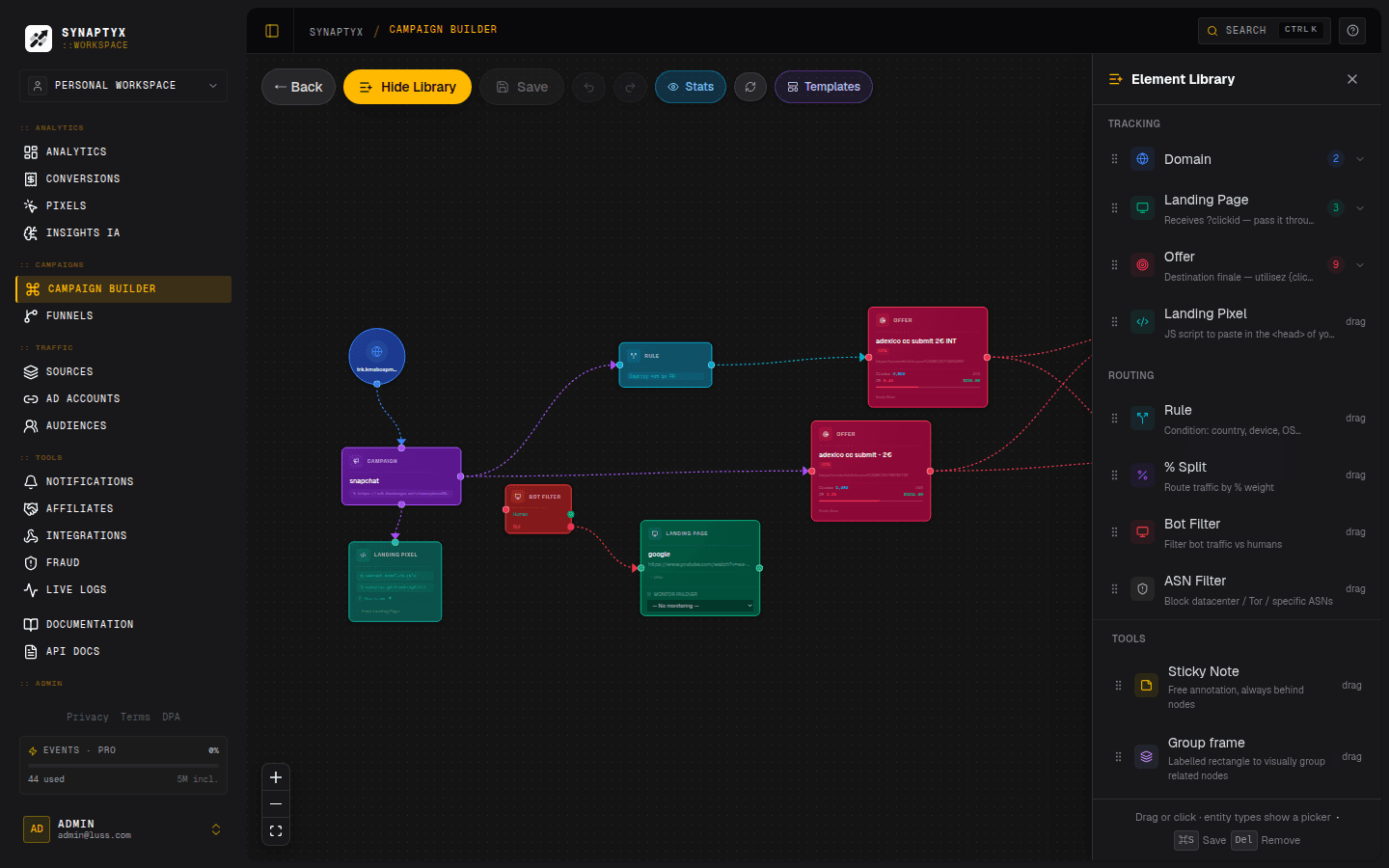
Anatomy of the canvas
- Palette (left) — drag nodes onto the canvas. Grouped into Tracking, Routing, Notifications, plus Sticky Note and CPA Network.
- Canvas (center) — your flow. Connect a node’s output handle to another node’s input.
- Inspector (right / on click) — edit the selected node’s settings (name, URL, conditions, weights…).
The node palette
Nodes are grouped by what they do. Each is documented in full on the Node Reference page.
| Group | Nodes |
|---|---|
| Tracking / Structure | Domain · Campaign · Landing Page · Offer · Landing Pixel |
| Routing (Pro) | Rule · % Split · Bot Filter · ASN Filter · Smart Link · Dayparting · Offer Cap · Visitor Cap · Smart Rotator |
| Notifications | Discord · Slack · Telegram · S2S Postback · Push Web |
| Other | CPA Network · Traffic Source · Group · Sticky Note |
The nine Routing nodes are the “brains” of a campaign and require a Pro or Scale plan. Everything else works on any plan.
Connection rules
You can’t wire nodes together arbitrarily — the builder enforces a sensible graph so your flow always makes sense. The key rules:
| From | Can connect to |
|---|---|
| Domain | Campaign only |
| Campaign | Landing, Offer, or any Routing node |
| Rule / Split / Bot / ASN / Smart Link / Dayparting / Cap | Landing, Offer, or another Routing node (you can nest) |
| Smart Rotator | Offer, or Landing → Offer |
| Landing | Offer (and an optional failover to a fallback Landing) |
| Offer | Notification nodes only (ends the routing flow) |
Multi-output nodes expose labeled handles: a Bot Filter has human / bot
handles, an ASN Filter has pass / block, an Offer Cap and a Visitor Cap have
under / over, a % Split has one handle per slot, and a Smart Link has one handle
per geo × device row.
How a graph becomes a live flow
When you click Save, a lot happens automatically:
Compile
The builder walks your graph and compiles it into a flow — a compact decision tree of rules, weights, defaults, and rotators. Sticky notes and purely visual elements are dropped; only routing-relevant structure survives.
Save
Both the graph (for editing) and the flow (for routing) are saved to the campaign, and caches are refreshed so the next click sees the new routing.
Publish to the edge
The routing is published to the Cloudflare edge so your links serve the new logic worldwide. Offer caps, down-site checks, and Smart Rotator optimization are applied ahead of time, so the edge can decide instantly.
Drafts are autosaved locally. As you edit a new campaign, the builder continuously saves a draft to your browser’s local storage, so a refresh won’t lose your work. Existing campaigns load from the server to avoid stale local copies.
Other campaign actions
From the campaign manager you can also:
- Clone — duplicate a campaign (flow + graph), re-pointed to a fresh ID and set to paused so you can edit before going live.
- Reset — wipe a campaign’s clicks and conversions for a clean test.
- Quick Setup — skip the canvas entirely and generate a minimal redirect-only campaign in one step (great for onboarding).
- Delete — remove a campaign and pull its flow from the edge.